![MAIA_LAND_RGB.png]](https://support.maiagrazing.com/hs-fs/hubfs/Logos/MAIA_LAND_RGB.png?height=40&name=MAIA_LAND_RGB.png)
This article explains how to clear your browser cache in Google Chrome and in Firefox.
In Google Chrome
-
Click on the 3 little dots in the top right of the screen:

-
Click on the word 'Settings'
-
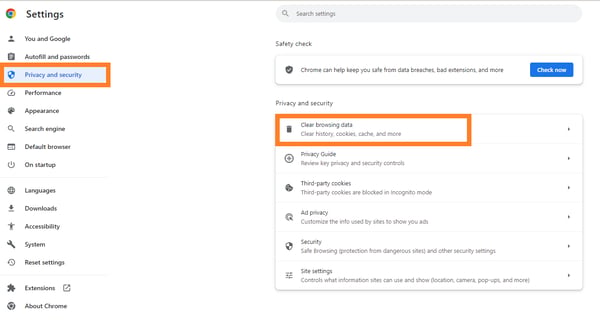
Scroll down until you see 'Privacy and Security'
-
Click on 'Clear Browsing Data'
-
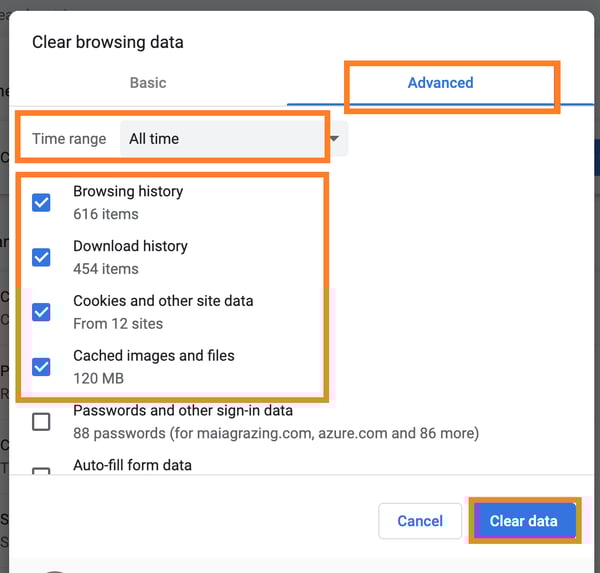
Select Advanced tab
-
Check that these 'Browsing history', 'Download history', Cookies and other sire data', and 'Cached images and files' are ticked.
-
Check that the TIME RANGE is for 'All time'
-
Click on 'Clear data'.
-
Close down your internet browser.
-
Open your internet browser
-
Login to MaiaGrazing
-
Check if this has fixed your issue.
If you are still experiencing problems please contact support.
If you are still experiencing problems please contact support.
In FireFox
-
Click on the three bars to the top right of the browser screen.

-
Click on the word 'settings' from the menu.
This will open a new browser screen.

-
Click on 'Privacy and Security' from the left hand menu.

-
Click on the button that says 'Clear Data'

A pop up box will open
-
Check that both 'Cookies' and Site Data' and the 'Cached Web Content' boxes are ticked.
-
Click on 'clear'.
-
Close down your internet browser.
-
Open your internet browser
-
Login to MaiaGrazing
-
Check if this has fixed your issue.
If you are still experiencing problems please contact support.