![MAIA_LAND_RGB.png]](https://support.maiagrazing.com/hs-fs/hubfs/Logos/MAIA_LAND_RGB.png?height=40&name=MAIA_LAND_RGB.png)
A forecast is used to create scenarios for forward planning. You can create forecasts for an entire property or for individual paddock/pasture groups. You can also create and save as many forecasts as you want in order to plan for potential future scenarios with varying monthly rainfall and stocking rate data.
For example you could create 3 forecasts for the same time period with below average, average, and above average rainfall.
Forecasts test whether your anticipated stock numbers enable you to match the Stocking Rate to your optimum Carrying Capacity.
This article explains how to create a forecast for your property or paddock group.
Step 1: Create a new forecast
-
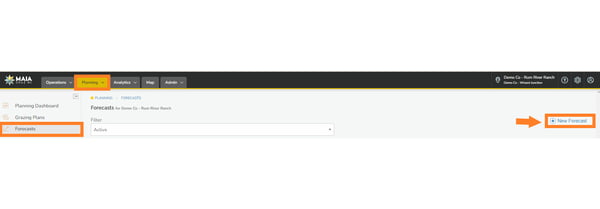
Click on the 'Planning' tab
-
Click on 'Forecasts'.
-
Click on '+ New Forecast' in the top right hand corner of the screen.
Step 2: Enter the details of the forecast
-
Click on the data entry box under 'Name' (1)
-
Enter a name for your forecast.
-
Click on the drop down box under 'Start Date' (2)
-
Select a start date for the period that you wish to create a forecast for.
-
Click on the number of months required for this forecast. (3, 6, 9, or 12) (3)
-
Click on the drop down box under 'Include on Dashboard' (4)
-
Click on 'Yes' if you want this forecast to be visible in your Analytics Dashboard.
Only one forecast can be displayed on the Analytics Dashboard.

Once the basic details have been added a forecast graph will be displayed using your long term average rainfall and your most recent months total monthly stockdays.

Step 3: select forecast type
-
Scroll down to display the data entry area underneath the graph.
-
Click on the 'COMBINED FORECAST' tab.
-
Click on the drop down box under 'Months to Show'
-
Select either '3, 6, or 12 months'
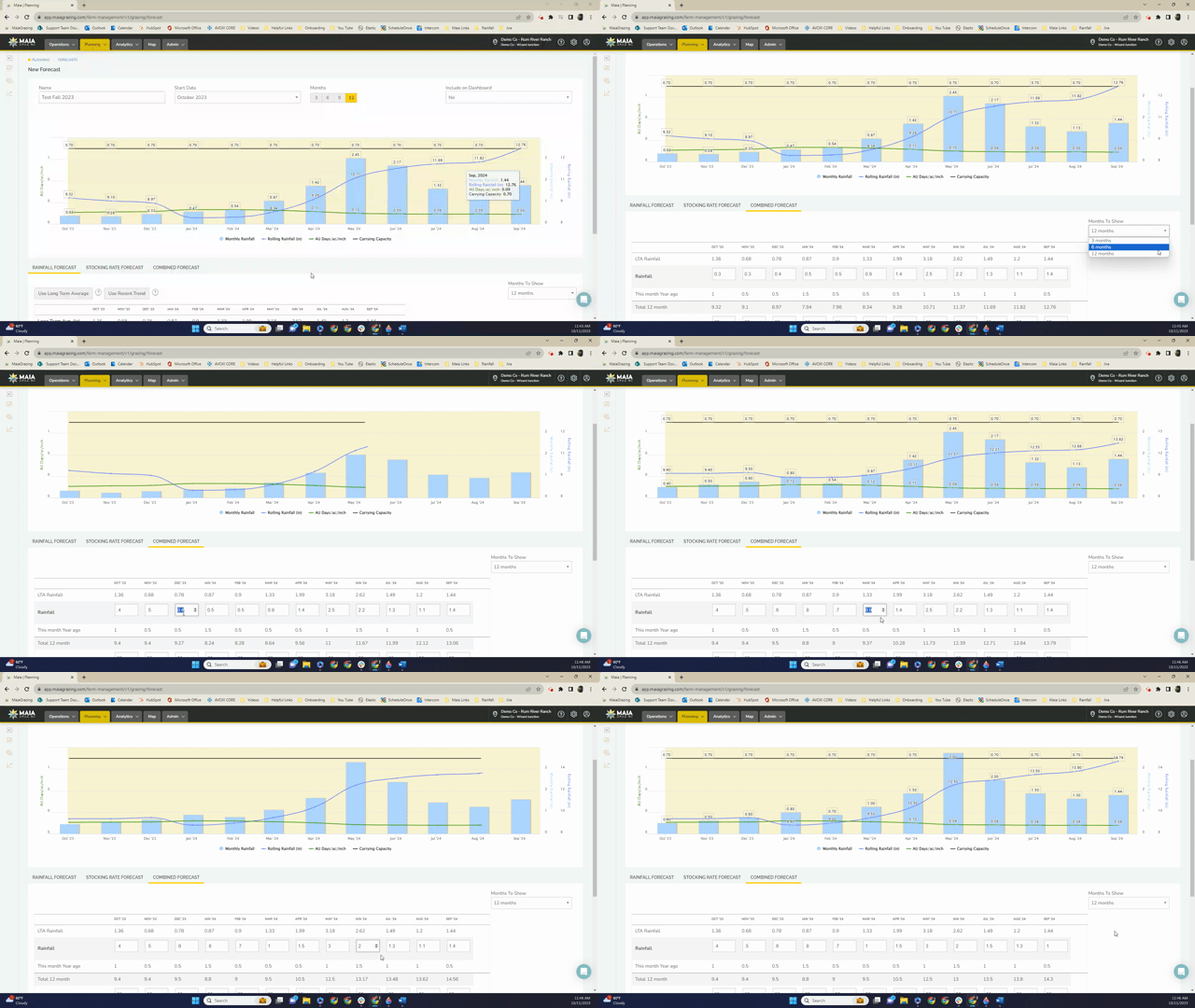
step 4: Enter monthly rainfall for the forecast period
- Click into the 'Rainfall' data box under the first month
- Type in the forecast rainfall for that month
- Repeat for all months of the forecast
The prepopulated data in the rainfall data box's is the average rainfall.
Step 5: Enter Monthly Stockdays for the forecast period.
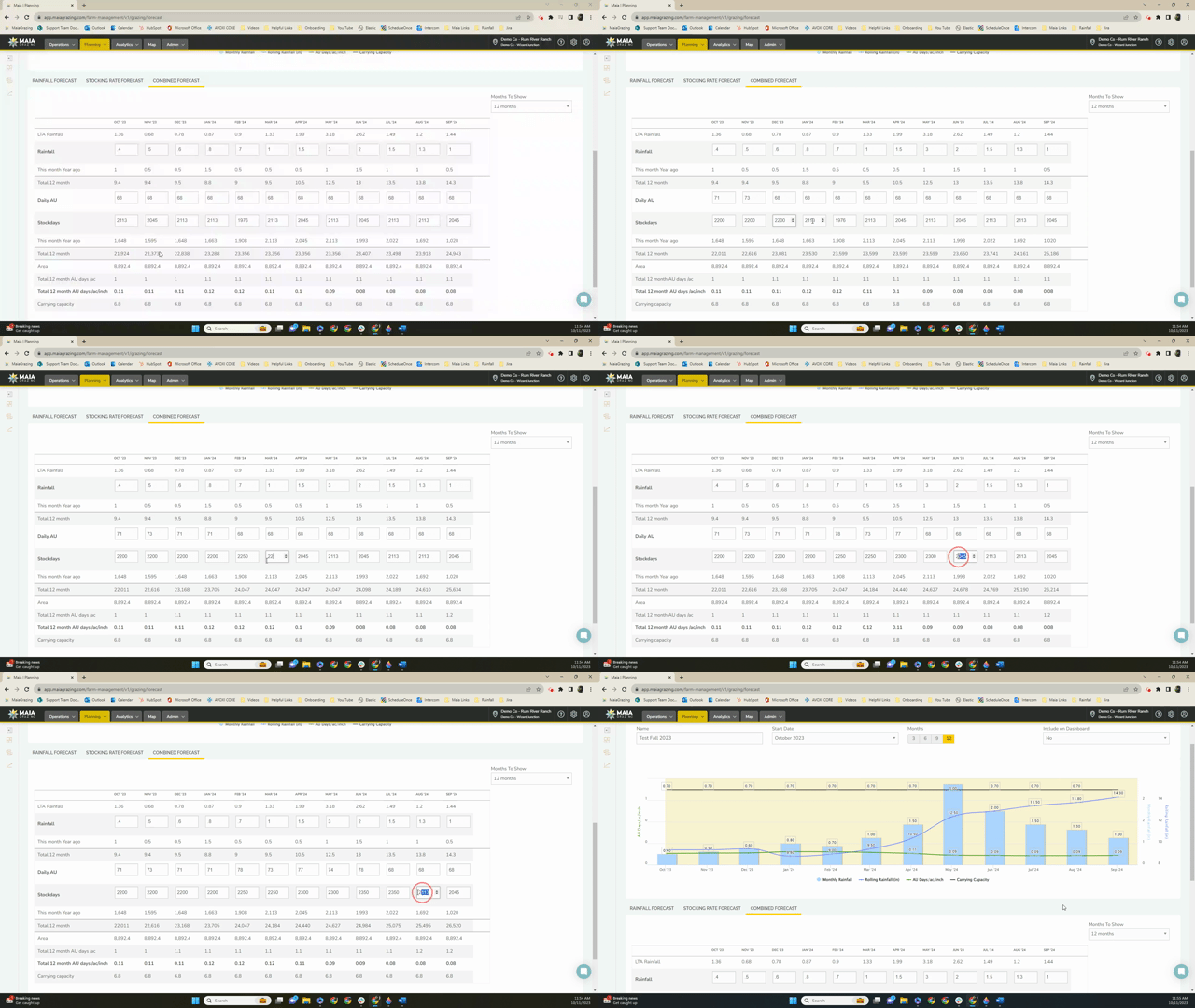
- Click into the 'Stockdays' data box under the first month
- Type in the forecast for that month
- Repeat for all months of the forecast
The prepopulated data in the stockdays data box's is the current grazing demand.
step 6: Save the forecast
-
Scroll to the bottom of the screen.
-
Click on 'Save Forecast'
Step 7: Viewing the forecast
Indicators:
The black line (1) is the Carrying Capacity that is currently set for the property. Read more about Carrying Capacity and how to set it HERE.
The blue line (2) is the projected rolling rainfall based on the last 12 months of actual rainfall plus the data you entered in the 'Forecast Rainfall' tab.
The green line (3) is the projected stocking rate based on the data you entered in the 'Forecast Monthly Stockdays' tab.
The blue upright bars are the total rainfall entered for each month (4)

The purpose of the forecast is to predict if you will be below, above or at your carrying capacity over a period of time. It is giving you the ability to look into the future to make decisions early. In the graph above, it is showing that if the stocking rate was increased in July with average rainfall received then this property would exceed its carrying capacity and be overstocked from July onward. Assess your options by going back and adjusting your stock assumptions to see how the timing and scale of changes in stock numbers changes the stocking rate outcome.
When entering your stock assumptions, remember to account for changes in stocking rate due to weight gain and commencement or ending of lactation in the breeder herd.