![MAIA_LAND_RGB.png]](https://support.maiagrazing.com/hs-fs/hubfs/Logos/MAIA_LAND_RGB.png?height=40&name=MAIA_LAND_RGB.png)
NB: Stock can only be sold from one mob at a time. If you wish to sell animals from multiple mobs in one transaction the please refer to Selling livestock from multiple mobs/herds in one transaction.
How to enter a livestock sale.
-
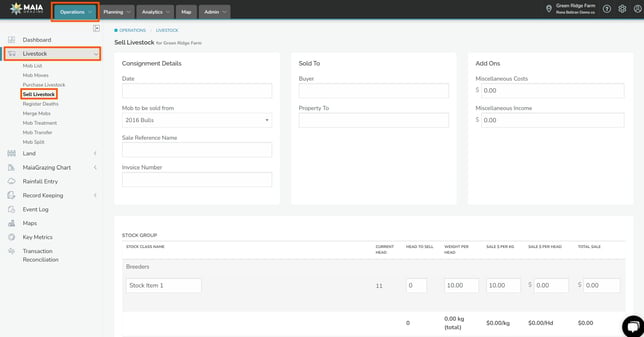
Click on the 'Operations' tab. (1.)
-
Click on 'Livestock' (2.)
-
Click on 'Sell Livestock' (3.)
-
Click on the date box. (1.) & Enter the date of the sale .
-
Click on the drop down box under 'Mob to be sold from'. (2.) & Select the name of the mob/herd containing the livestock to be sold.
-
Click in the box under 'Sale Reference Name' box. (3.) & Enter a reference name for this transaction (this reference name will show in your event log and in your transaction log).
-
Click in the box under 'Invoice Number'. (4.) **This is optional** & Enter the invoice number associated with this purchase
-
Click in the box under 'Buyer'. (5.) & Enter information.
-
Click in the box under 'Property To'. (6.) **This is optional** & Enter the name or identification number of the property the stock went to.
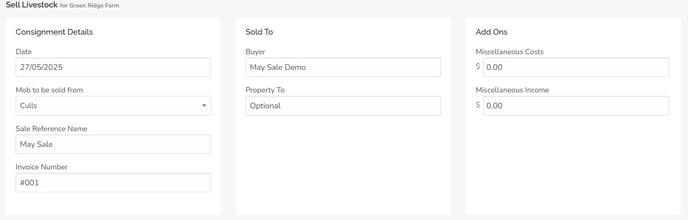


** Information in the 'Add Ons' section is optional**
Miscellaneous Costs – any transport costs, agent fees, yard fees, levies etc. that are shown on your invoice. This amount will be removed from the total amount calculated from the sale of the animals.
Miscellaneous Income – any income to be added that isn’t included in the price of the animal sold. This will be added to the total amount calculated for the sale of the animal.
Once the mob has been selected all of the stock in that mob on the chosen date will be available to be sold.
Find the stock group that you want to sell animals from.
-
Click in the box under 'HEAD TO SELL'.
-
Enter the number of head to sell.
-
Click in the box under 'WEIGHT PER HEAD'
-
Enter the average weight per head by clicking into the box and typing over the existing data.
-
Enter the sale amount as either:
- Sale $ per weight
- Sale $ per head
- Total sale $ for that stock group
-
Check the totals for each stock group as you go to insure accuracy of entry.
- Review the total amount for the livestock sold will be displayed at the bottom of the consignment, less any miscellaneous cost and plus any miscellaneous income.
-
Click save when complete.