![MAIA_LAND_RGB.png]](https://support.maiagrazing.com/hs-fs/hubfs/Logos/MAIA_LAND_RGB.png?height=40&name=MAIA_LAND_RGB.png)
A non-growing graze plan differs from a growing season plan because it is geared toward budgeting the feed available in the pasture through to your property's green date
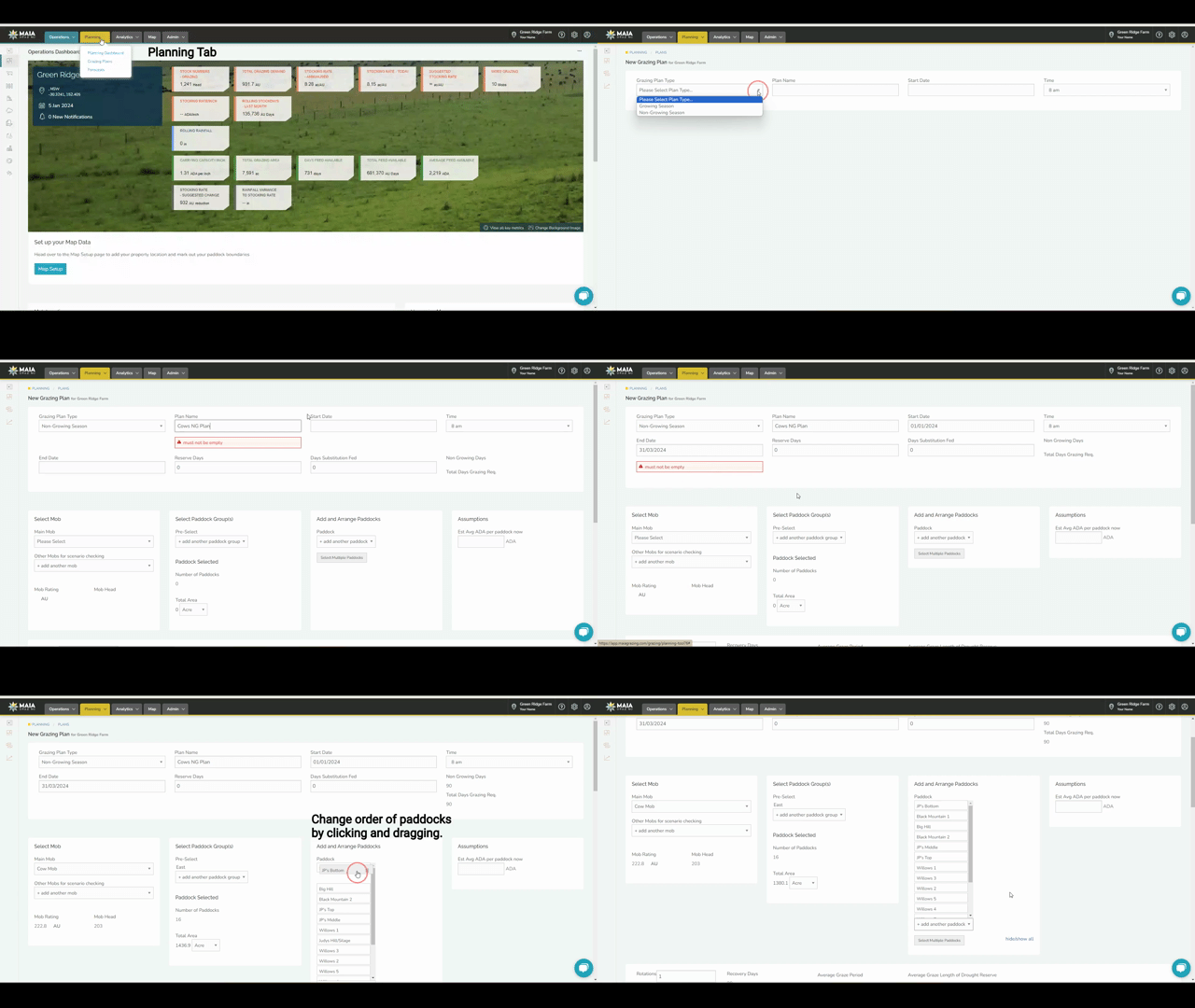
Step 1: Navigate to Graze Planning
- Click on 'Planning' tab
- Click on 'Grazing Plans'

-
Click on ‘+ New Grazing Plan’

Step 2: Create a Non-Growing Season Graze Plan
-
Click on the drop-down arrow for Grazing Plan Type select ‘Non-Growing Season’
- Click in the ‘Plan Name’ box and create a name that is relevant to this plan.
-
Click in the ‘Start Date’ and select the date that the plan will begin.
-
Click in the ‘End Date’ and select the date that the plan will end.
Note: Reserve Days' and 'Days Substitution Fed' are OPTIONAL
-
Click on the ‘Main Mob/Herd’ drop-down arrow to select the mob/herd for this plan.
-
To add additional mobs/herds to the plan Click on the ‘Other Mobs/Herds for scenario checking’ drop-down arrow to add another herd.
-
-
To select Paddock/Pasture Group(s) Click on the ‘Pre-Select’ drop-down arrow and select the paddock/pasture group that will be grazed. Additional paddock/pasture groups can be added by Clicking on the ‘+ add another pasture group’ drop-down arrow.
-
The paddocks/pastures associated with the group selected we automatically populate into the ‘Add and Arrange Paddock/Pastures’.
-
- To change the order of the paddock/pasture Click and hold to drag and drop into the desired order.
- To remove a paddock/pasture Hover over the paddock/pasture name you would like to remove and Click the trash can
 .
.
-
-
To add a paddock/pasture if you would like to graze twice in the graze plan Click ‘+add another pasture’.
-
- The 'Assumptions' box is OPTIONAL. You may enter the estimated avg forage available per paddock which will prepopulate the EST. forage available in the graze plan.
- The 'Rotations' box is OPTIONAL. The rotations box defaults to 1 rotation.
Step 3: Adjust and Analyze the Non-Growing Season Plan
- Enter the Est Forage Available per paddock/pasture, if you did not enter a value in the 'Assumptions' box. This is the feed on offer which can be found in your forage inventory. Click here to learn more about the forage inventory tool.
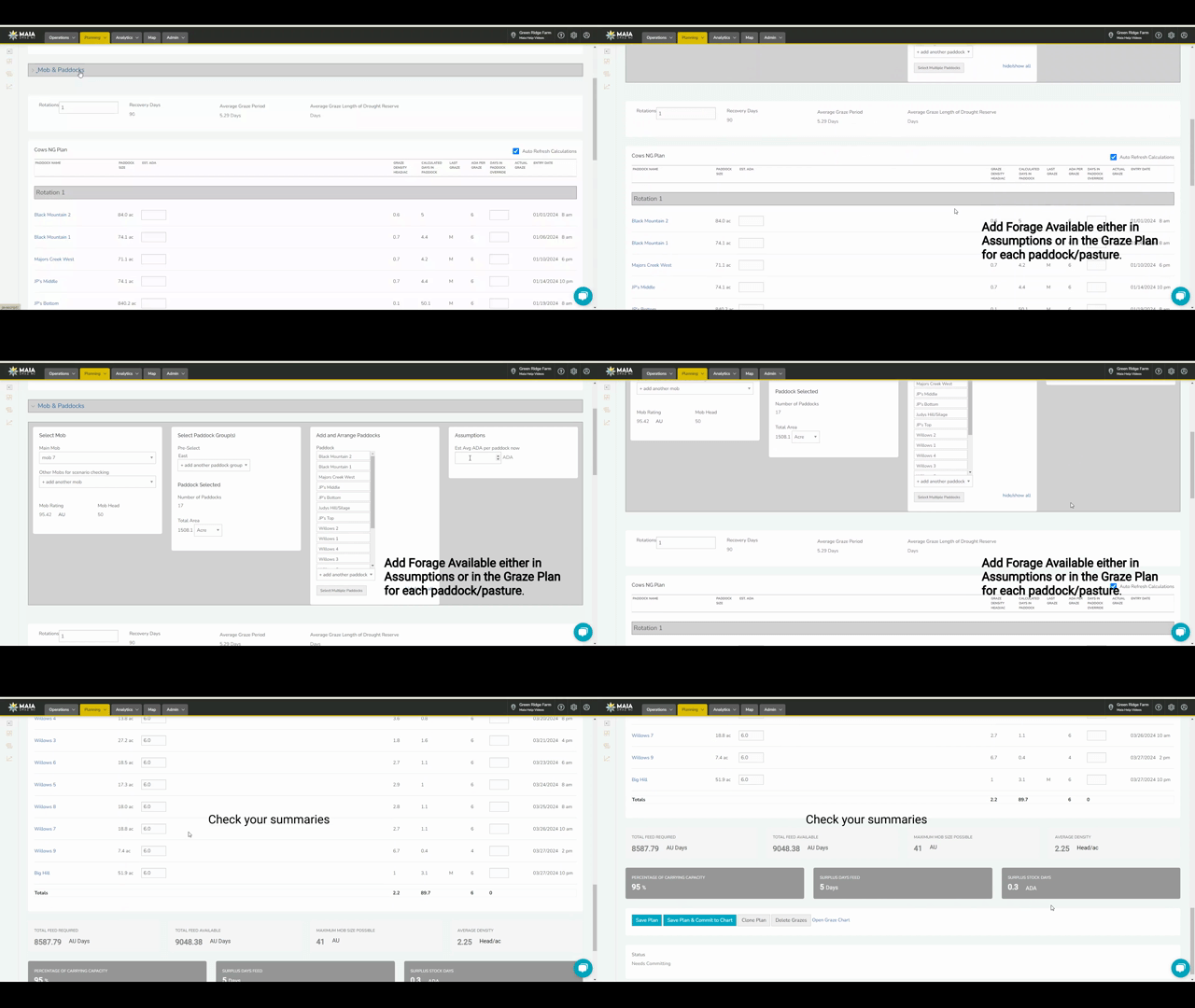
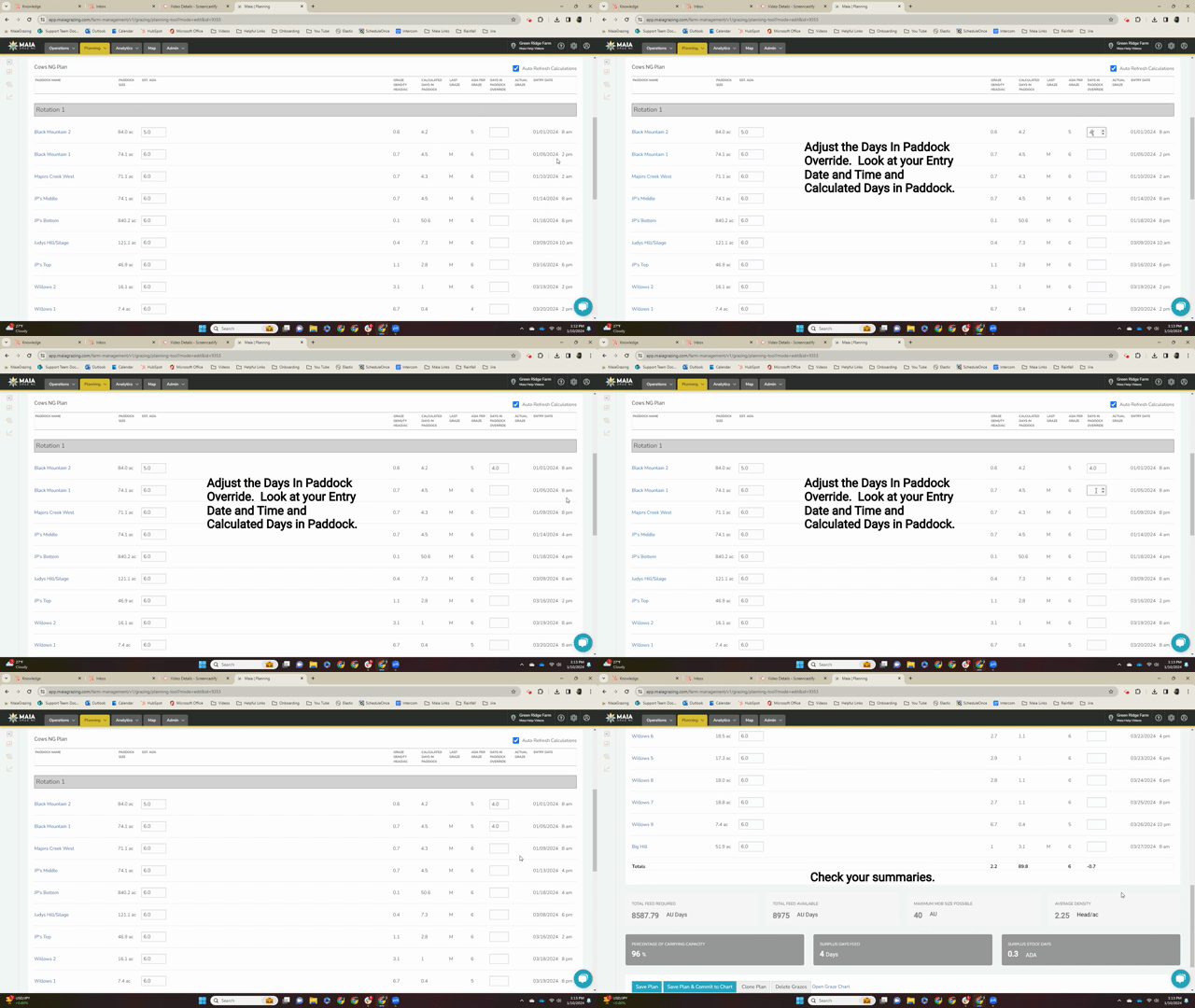
- Adjust ‘Days In Paddock Override’ to a reasonable time of day the mob/herd will be moved and also for the amount of days you will be in the paddock/pasture.
- Analyze 'Percentage of Carrying Capacity, Surplus Days Feed, and Surplus Stock Days' summaries at the bottom of the page.
Points to Ponder:
- Is my stocking rate matching my carrying capacity?
- Have I given my paddock time to recover after grazing?
- What is the rolling rainfall trend am I matching my grazing to that trend?
Step 4: Save
-
‘Save Plan’ if you are not ready to commit to the chart
-
‘Save Plan & Commit to Chart’ a plan that you want to put into action, By committing the plan MaiaGrazing will automatically do the moves.
- Clone Plan’ to make a copy to edit
-
‘Open Graze Chart’ to see the plan in the MaiaGrazing chart