![MAIA_LAND_RGB.png]](https://support.maiagrazing.com/hs-fs/hubfs/Logos/MAIA_LAND_RGB.png?height=40&name=MAIA_LAND_RGB.png)
Before you start: You will need to have:
-
stock classes setup
-
enterprises setup
-
stock groups setup
-
and your livestock inventory numbers on hand.
What numbers to use: It is recommended that Herd/Mob numbers need to be set up as they were at the first day of your commencement month in the program.
-
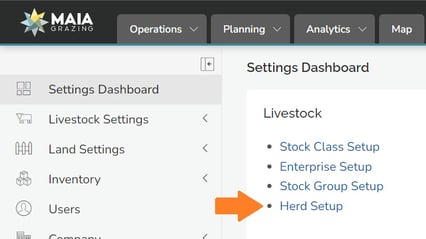
Click on 'Herd or Mob Setup'
To add a new Herd/Mob:
-
Click on 'Add Herd/Mob'.(1)
This will open a new Herd/Mob at the top of the Herd/Mob list. MaiaGrazing usually gives this Herd/Mob a default name like Herd 1/Mob 1.
-
Check that correct herd is highlighted in the Herd/Mob list. (a)
-
Click into the data entry box underneath 'The name of this Herd:' (2)
-
Type over the name 'Herd/Mob 1' with your chosen herd/mob name.
-
Click on the coloured dot underneath the herd/mob name to choose the colour that this herd/mob will be in your grazing chart. (3)
-
Click on the drop down box under 'Which paddock/pasture is this Herd/Mob in?' (4)
-
Click on the name of the paddock to allocate this herd too.
If you don't wish to allocate a paddock/pasture yet leave this blank. Once this mob/herd is saved it will appear in your mob list with the text 'Needs Moving to Paddock/Pasture' beside it.

You are now ready to add the stock groups that exist in this herd/mob
-
Click into the data entry box under under 'Stock Description'. (Column a)
-
Type over 'Stock Item 1.' with the label for these animals.*
-
Click on the drop down box under 'Stock Group'. (Column b)
-
Click on the stock group to be added to this herd/mob.
-
Click on the data entry box under 'Head'. (Column c)
-
Type the number of head from this stock group to be added to this herd/mob.
-
Click on the data entry box under 'Weight'. (Column d)
-
Type in the average weight of these animals.
-
Click on the data entry box under 'kg.dm/head, lb.dm/head, AU, LSU, DSE'.(Column e)
-
Type in the average feed demand rating of these animals.
-
Click on EITHER the data entry box under 'value/kg' OR the data entry box under 'value/head'.(Column f)
-
Type in EITHER the average value per kilo OR the average value per head.**
-
Click on 'Add Stock' if you want to add another stock group to this Herd/Mob.
-
Click on 'Save' when all animals have been entered for this mob/herd.

*Stock Description = an independent label that you can you use to add more detail. For example Joe Bloggs might have 10 Angus Heifers on agistment and 10 Brahman Heifers and I want to see Joe Bloggs 10 Angus heifer listed separately from my own Angus Heifers in my reports.
If you don't want to use this label just change the "Stock item 1" so that it matches your stock group name.
**Value = It is recommended to use $/kg or $/head based on current market value – this feeds into inventory value and will be the opening value for your StockFlow Report.
Deleting a stock group line from a mob/herd: If you make a mistake and need to delete a stock group from the Herd/Mob you are creating you can hover your mouse to the right of where you add the Value/Head text for the Stock Item and a blue box with an X will appear.
Clicking on this blue box will remove that stock item line.
This will only work for stock groups that have just been set up.

-
Click on 'Add herd/mob' if you want to set up another Herd/Mob and then repeat steps 3-9 again.
-
Click on 'Save & Close' to return to the Settings Dashboard
Your mobs are now setup in the program. Go to the Operations tab to start your MaiaGrazing journey!