![MAIA_LAND_RGB.png]](https://support.maiagrazing.com/hs-fs/hubfs/Logos/MAIA_LAND_RGB.png?height=40&name=MAIA_LAND_RGB.png)
Step 1: Navigate to the Stockflow Report:
-
Click on the 'Analytics' tab. (1.)
-
Click on 'Stockflow Report' from the left hand menu. (2.)

Step 2: Create your stockflow report
-
Click on the drop down under 'Report Filter' and select either 'Stock Class' or 'Enterprise'. (3.)
-
Enter the required dates in the start and finish date boxes. (4.)
-
Click on 'Create Report'. (5.)
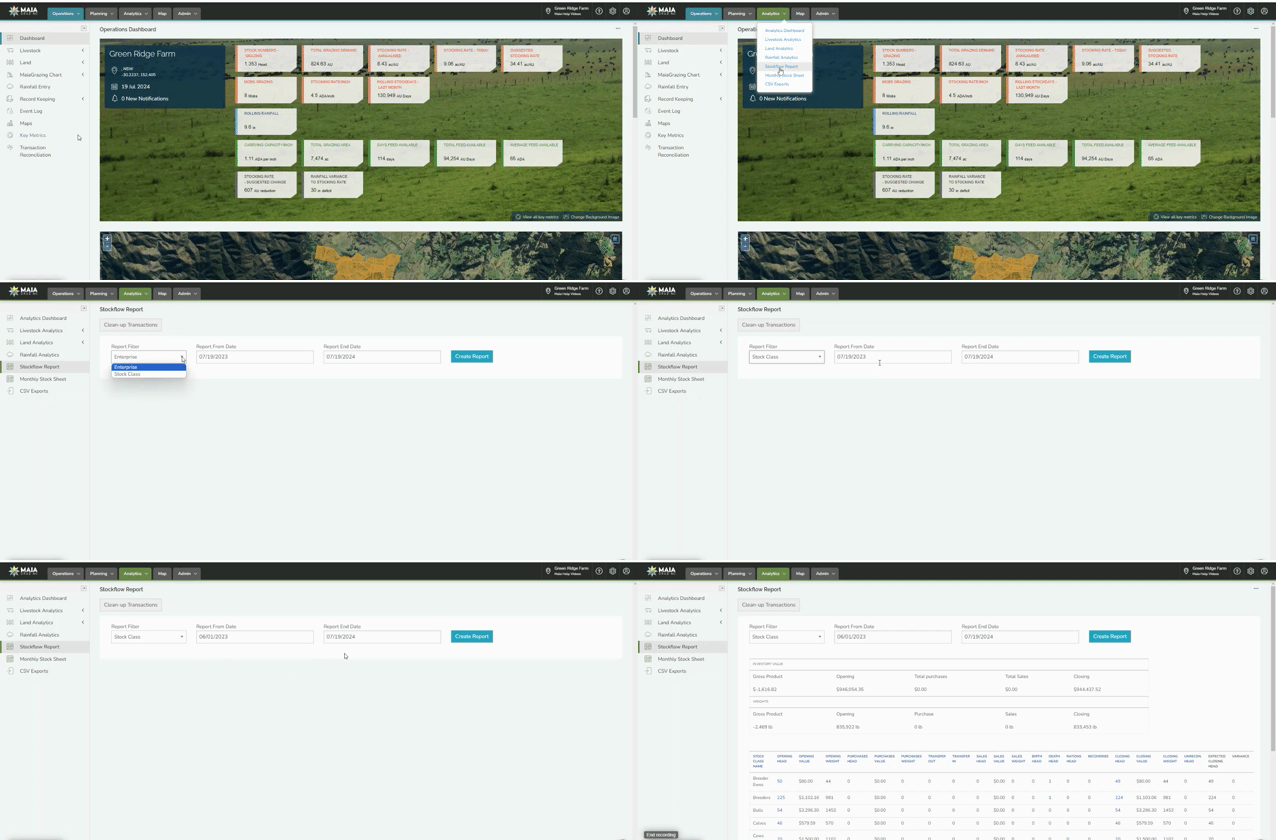
This will display your Stockflow Report similar to the example below.

Step 3: Download your stockflow report
-
Hover your mouse over the 3 dots in the top right of the screen. (5.)
-
Click on 'Download Report' (6.)
