![MAIA_LAND_RGB.png]](https://support.maiagrazing.com/hs-fs/hubfs/Logos/MAIA_LAND_RGB.png?height=40&name=MAIA_LAND_RGB.png)
To update stock information in the mob management screen
-
Click on the 'Operations tab' at the top of the MaiaGrazing screen (1)
-
Click on 'Livestock' (2)
This will open in the Mob List page
-
Click on the name of the mob you want to adjust (3)
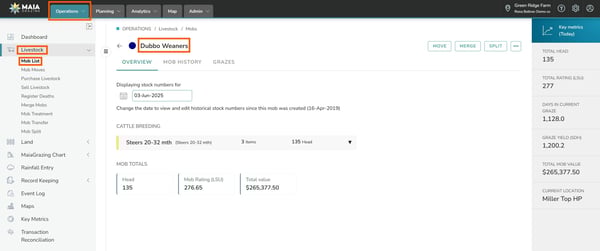
This will open the mob/herd management screen.
-
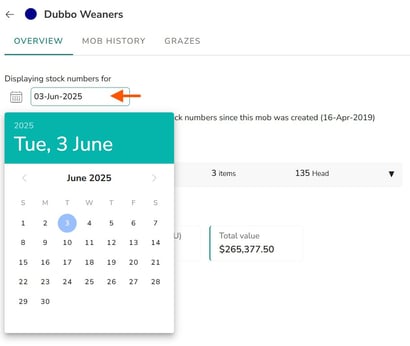
Click in the date box and select the date you wish to make the change from (4)
-
Wait for the mob overview page to update for the date that you have chosen. This can take a few seconds.
-
Click on the three dots
 to the right of the stock group that you wish to update (5)
 -
Click on 'edit'. (6)
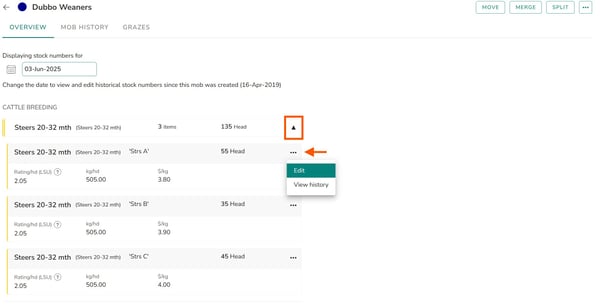
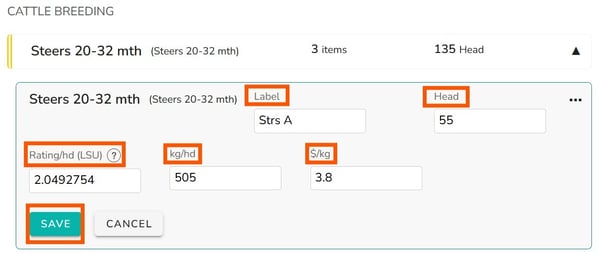
With the edit function selected you will have access to change the following:


-
(a) Label (Every item of purchased livestock will have a default label. Some customers already add their own labels to distinguish between groups of similar animals belonging to the same Stock Class. You can edit (or delete) the Label on-the-fly to help you organise quickly!)
-
(b) Head Count (for Lost/Found/Death)
-
(c) Rating (LSU, DSE, kg, lB, AU etc)
-
(d) Weight
-
(e) Value $/kg
-
Click on 'Save' to finish. (8)This will save any changes that you have made from the date that was selected at (4).
