![MAIA_LAND_RGB.png]](https://support.maiagrazing.com/hs-fs/hubfs/Logos/MAIA_LAND_RGB.png?height=40&name=MAIA_LAND_RGB.png)
A new product will need to be created each time you purchase a product with a different batch number. Even if this product already exists in your inventory.
To add a new product to your product inventory:
Navigate to the settings screen:
-
Click on the cog wheel
 in the top right hand corner of the screen to open your settings tab.
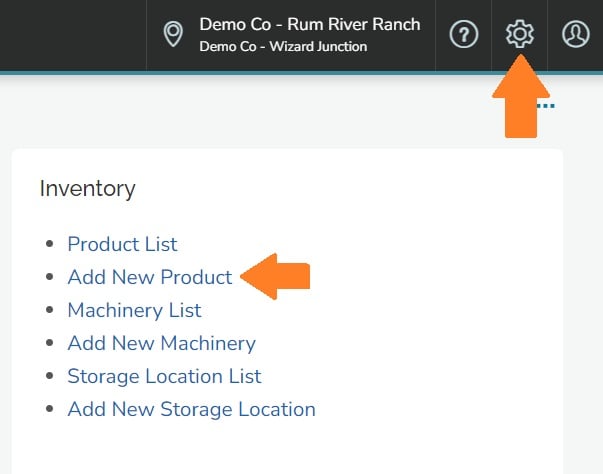
Open the 'Add New Product' screen
- Click on 'Add New Product'
- Wait for the 'Add Product' page to load
Choose a category of product to create
-
Click on the top drop down box to select the category that you wish to setup.
You can choose from Animal Health, Fertiliser, Spray Treatment, or Stock Feed.

Enter the name and availability of your product
After you have chosen your category you will be able to enter the details of your product.
-
Click into the box underneath name.
-
Type the name of your product. User letters or numbers only. Do not use special characters (!@#$%^&*_-)
-
Click yes or no as appropriate underneath Share this product with other properties?

If you have multiple properties setup in MaiaGrazing and wish to be able to select this product from your inventory to use on all properties then make sure to choose the yes option.
Enter the amount of product to be added to your inventory
-
Click on the drop down box under Weight or Volume
-
Select weight for dry product or volume for a liquid product.

-
Click into the data entry box under 'Amount In Stock'
-
Enter the amount of product to be added to the inventory
-
Click on the drop down box under units
-
Select the appropriate units you wish to use.

Enter the product cost
-
Click into the data entry box under 'Product Cost'
-
Enter the cost of the product to be added to the inventory
-
Click on the drop down box under 'Units'
-
Select the appropriate units to fit the cost.

Enter the application dosage details
-
Click on the drop down box under 'Application units'
-
Select the appropriate units to fit the application.
-
Click into the data entry box under 'Default Application Rate'
-
Enter the application rate for the product

Enter the details of the product to be added to the inventory
-
Click into the data entry box under 'Batch Number'
-
Enter the batch number (this number will be linked to any treatments using this product)
-
Click into the data entry box under 'WHP' (Withholding Period)
-
Enter the number of days for the withholding period. If no withholding period enter "0".
-
Click into the data entry box under 'Expiry Date'
-
Click on the expiry date of the product in the calendar.
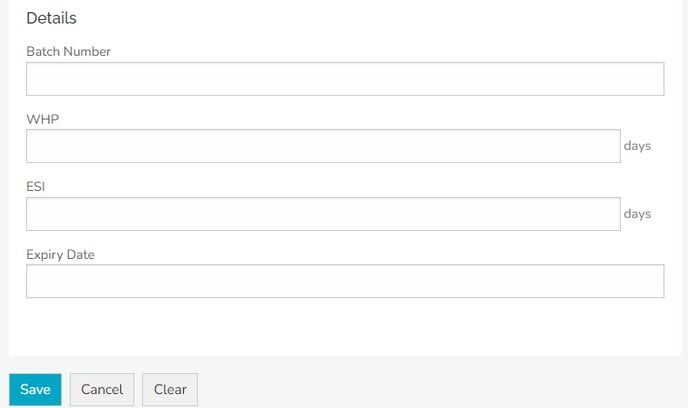
- Click on 'Save' when finished
This product will now be available for selection when applying an animal health treatment.
Note: A new product will need to be added each time you purchase a product with a different batch number. It is recognized that this process requires improvement.