![MAIA_LAND_RGB.png]](https://support.maiagrazing.com/hs-fs/hubfs/Logos/MAIA_LAND_RGB.png?height=40&name=MAIA_LAND_RGB.png)
A growing season graze plan differs from a non-growing season plan because it is based on the rest period (recovery days) your pastures require. This will fluctuate depending on the season you are having, and this type of plan allows for this kind of flexibility.
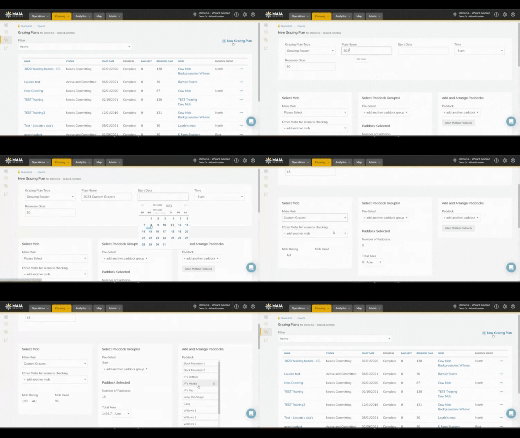
Step 1: Navigate to Graze Planning
-
Click on ‘Planning Tab’
-
Click on ‘Graze Plans’

-
Click on ‘+ New Grazing Plan’

Step 2: Create a Growing Season Graze Plan
-
Click on the drop-down arrow for Grazing Plan Type select ‘Growing Season’
-
Click in the ‘Plan Name’ box and create a name that is relevant to this plan.
-
Click in the ‘Start Date’ and select the date that the plan will begin.
-
Click in the ‘Recovery Days’ to adjust the rest days.
-
Click on the ‘Main Mob/Herd’ drop-down arrow to select the herd for this plan.
-
To add additional mobs/herds to the plan Click on the ‘Other Mobs/Herds for scenario checking’.
-
Click in the ‘Pre-Select’ Paddock/Pasture Group and select the paddock/pasture group that will be grazed. Additional paddock/pasture groups can be added by Clicking on the ‘+ add another pasture group’.
-
The paddocks/pastures associated with the group selected we automatically populate into the ‘Add and Arrange Paddock/Pastures’.
-
To change the order of the paddock/pasture Click and hold to drag and drop into the desired order.
-
To add a paddock/pasture if you would like to graze twice in the graze plan Click ‘+add another pasture’.
Step 3: Analyze and Adjust the Growing Season Plan
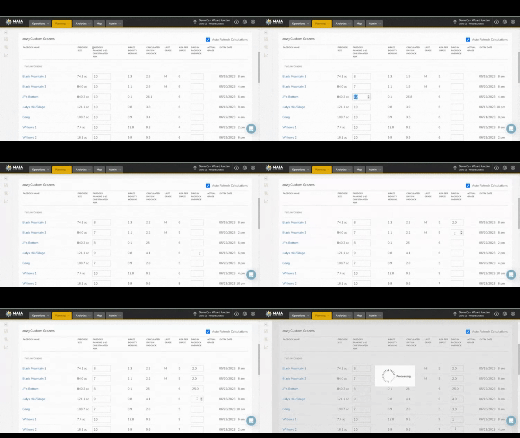
MaiaGrazing evens out your impact across the pastures by taking less from your lower producing pastures and more from the higher producing pastures.
-
Adjust ‘Paddock Ranking 1-10 or Estimated ADA’
Click HERE to learn more about finding and using the Pasture Inventory tool.
-
Adjust ‘Days In Paddock Override’ to a reasonable time of day the mob/herd will be moved.
-
Check the ‘Average Rating, Average Graze, Average Head, and Average Density’ summaries at the bottom of the page.
Step 4: Save
-
‘Save Plan’ if you are not ready to commit to the chart
-
‘Save Plan & Commit to Chart’ a plan that you want to use
-
‘Clone Plan’ to make a copy to edit
‘Open Graze Chart’ to see the plan in the MaiaGrazing chart
Editing a Graze Plan
- Edit an existing Grazing Plan - Adding Paddocks/Pastures.
- Edit an existing Grazing Plan - Changing the order that paddocks/pastures are grazed.
- Editing Recovery Days in Committed Growing Season Graze Plan
- Deleting a Graze Plan