![MAIA_LAND_RGB.png]](https://support.maiagrazing.com/hs-fs/hubfs/Logos/MAIA_LAND_RGB.png?height=40&name=MAIA_LAND_RGB.png)
Step 1: Access MaiaGrazing Plus App
- Open the phone app
- Login to your account
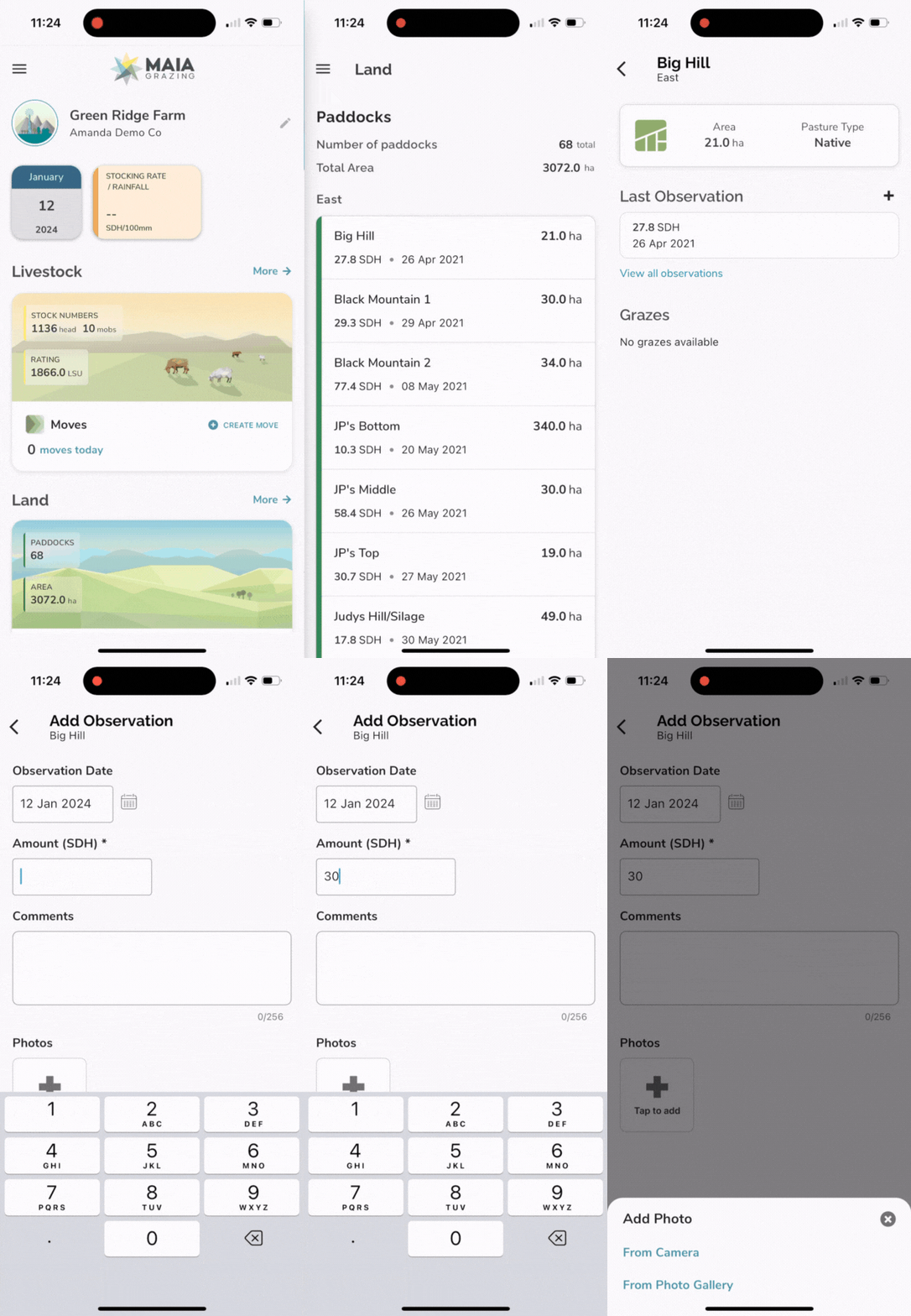
- Tap on 'Land' on the dashboard.
- Tap on the 'Paddock/Pasture' you wish to add the pasture observation
- Tap on the '+' a pop-up box will appear to add the observation
- Tap on 'Date' and select date of observation
- Tap on 'Amount' and add your observation
- Tap on 'Comments' and add any comments
- Tap on '+' located under photos and either add a photo from the camera or from your photo gallery (ideally use the add photo from camera option to avoid issues with image size. See Tip at bottom of article if photo gallery picture is too large)
- Tap 'OK'
- Observation recorded appears after tapping ok
Once the app is synced this data will be available in your Pasture Inventory in the desktop
- Click on 'Operations'
- Click on 'Land'
- Click on 'Forage Inventory'
Note: Photo observations will only be available to view on the mobile app. If there are multiple users in an account, each user will be able to view all photo observations available for that account on the mobile app.
Tip: If image size is an issue when trying to upload an existing photo from your Photo Gallery, screenshot the image (this will greatly reduce the size of the photo) and upload the screenshot instead.