![MAIA_LAND_RGB.png]](https://support.maiagrazing.com/hs-fs/hubfs/Logos/MAIA_LAND_RGB.png?height=40&name=MAIA_LAND_RGB.png)
There are three ways to enter your pasture observations.
- Through the Pasture/Paddock Management Screen on the desktop app.
- Through the Pasture Inventory Screen on the desktop app (bulk entries) - see steps below
- Through the Phone App
Entering observations through your Pasture Inventory Screen
-
Click on 'Operations'
-
Click on 'Land' from the left hand menu.
-
Click on 'Forage Inventory'
-
Click on 'Bulk Update Inventory'
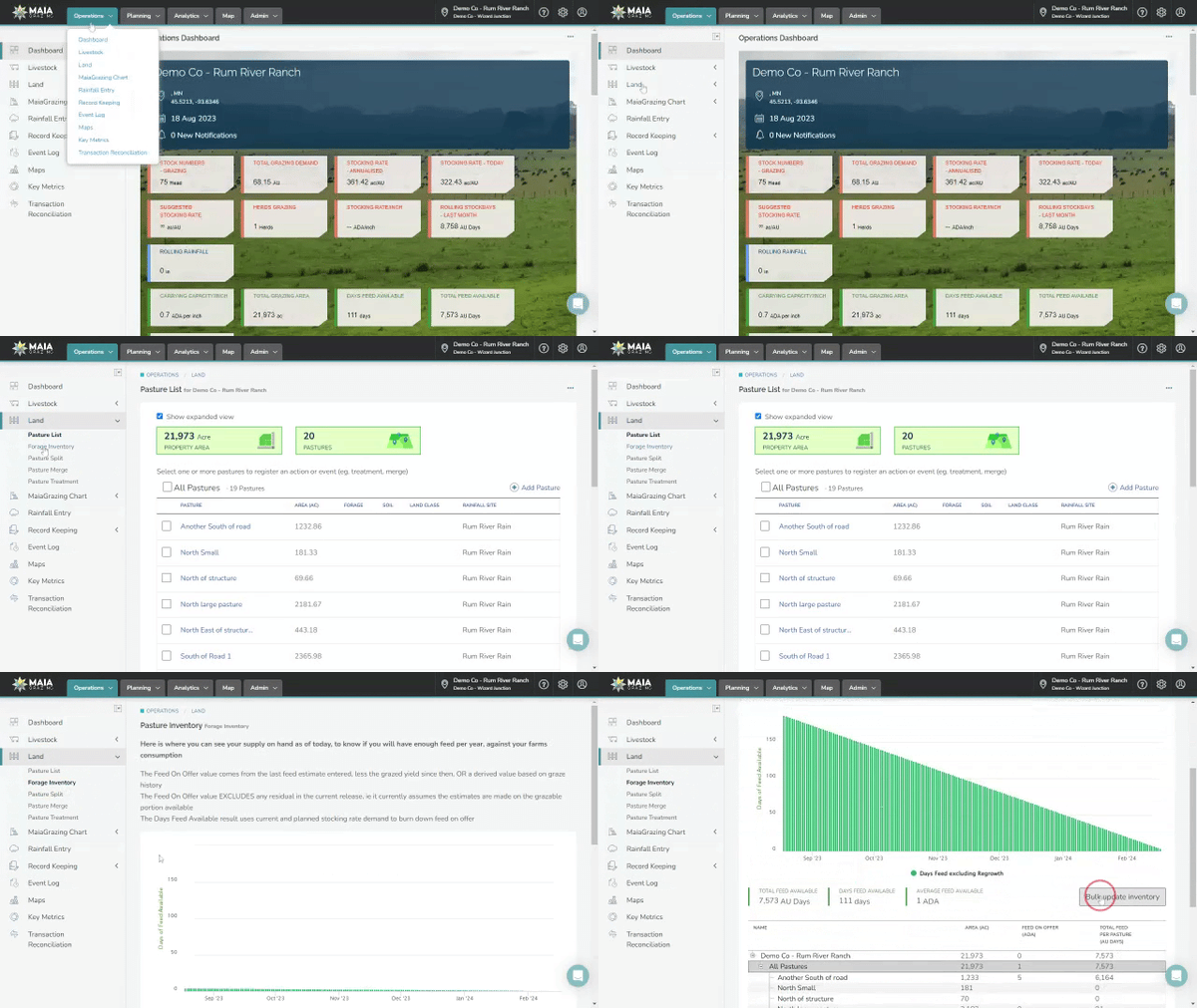
This opens editable fields for all paddocks / pastures on your property.
-
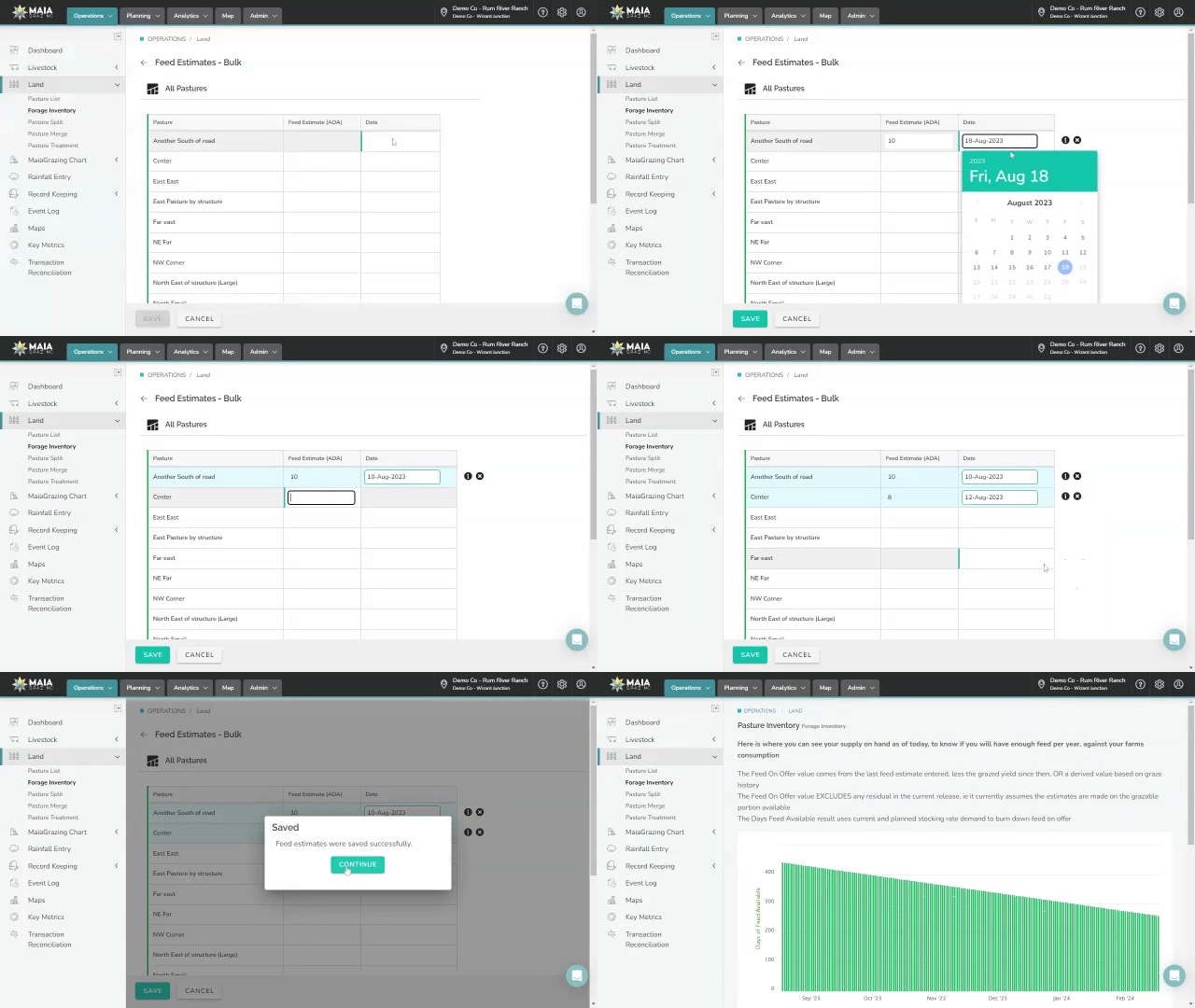
Click into 'Feed Estimate' box for the relevant paddock/pasture.
-
Enter the Feed Estimate
-
Click into 'Date' box adjust date to day of observation
- Click into 'Feed Estimate' box for the next paddock/pasture or Press Tab on your keyboard and enter data
- Click 'Save'
- Click 'Continue' in the pop-up box Saved - Feed estimates were saved successfully.
Tips:
-
Click on the 'X' to the right of each paddock to delete the data entered
-
Hover over the 'i' to the right of each paddock/pasture to see the previous assessment