![MAIA_LAND_RGB.png]](https://support.maiagrazing.com/hs-fs/hubfs/Logos/MAIA_LAND_RGB.png?height=40&name=MAIA_LAND_RGB.png)
This article explains Step 2 of 3 steps required to setup, record, and report on stock fed to livestock in MaiaGrazing.
Step 1: Create a stock feed product in product inventory
Step 2: Recording fodder or supplement stock feeding events
Step 3: View stock feed history report
Stock feed and supplements will need to be setup in the product inventory before they can be used in livestock events. Click on Step 1 above for instructions on how to setup a new supplement or fodder.
Recording the feeding out of stock feed and supplements from your product inventory.
To record the dates and amounts of fodder or supplements fed to mobs/herds it is necessary to do a Mob/herd Treatment.
-
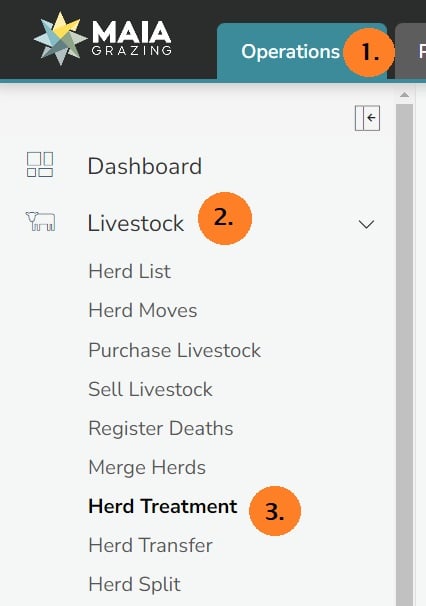
Click on 'Operations' (1)
-
Click on 'Livestock' (2)
-
Click on 'Mob/herd Treatment' (3)
Entering feed event dates and details
-
Click into the data entry box under 'Start Date'
-
Click on the start date of the event in the calendar.
-
Click into the data entry box under 'End Date' (Optional)
-
Click on the end date of the event in the calendar.
Note: Regardless of the start and end dates selected only one feed event will be created. If you intend to record stock feed events that span over several days or weeks, and your stock feed product has been created using a daily consumption amount, a separate feed event will need to be entered each day to ensure that the daily consumption rate per head is correctly recorded. An article explaining this further can be found here.

-
Click into the data entry box under 'Description'
-
Type the name of the event. This name will appear in your record keeping report.
Selecting the stock to be included in this feeding event.
-
Click on '+Add mobs/herds '(4)

A pop screen will open displaying all of the mobs/herds that existed on the date of the event.
-
Click on the mob/herd that relates to this event
-
Hold down the Ctrl key on your keyboard to select multiple mobs/herds
-
Click on 'Add'

A list of the stock groups for each mob/herd will appear at the bottom of the treatment screen.
If you only wish to record feed for certain animals in the mob/herd you can change the number of animals to be fed by typing over the number of animals in the data entry box. (5)

-
Click on Treatment Details to move to the next screen
Add the product to be used in the stock feed event
In the treatment screen there is the option to create a new product or to use a product from the inventory.
To create a new product:
-
Click on the '+Create a new Product' button
-
Follow the instruction in the article found here.
To use a feed or supplement product from the product inventory:
-
Click on 'Add' beside the product name. (6)

Under Selected Products a summary will be displayed of how much of this product will be used in this event and the cost.

-
Click on 'Application' to move to the next screen. (7)
Enter details of the application
Information entered in the application screen is optional. .
-
Follow the prompts to enter required information.
-
Click on 'Continue to Confirmation' button. (8)

Confirm event
The confirmation screen will provide you with a summary of the details entered.

-
Click on 'Confirm and Save'. (9)
This event will now be recorded in your record keeping reports.
Remember: If you are substitute feeding you will need to access your mob/herd management screen and adjust the feed demand rating for each stock group to account for the amount of substitute feed they are receiving.