![MAIA_LAND_RGB.png]](https://support.maiagrazing.com/hs-fs/hubfs/Logos/MAIA_LAND_RGB.png?height=40&name=MAIA_LAND_RGB.png)
This article explains Step 3 of 3 steps required to setup, record, and, report on paddock/pasture treatments in MaiaGrazing.
Step 1: Adding new paddock/pasture, spray treatment or fertiliser product to your product inventory
Step 2: Recording paddock/pasture, spray, treatment or fertiliser
Step 3: View paddock/pasture, spray, treatment or fertiliser history report
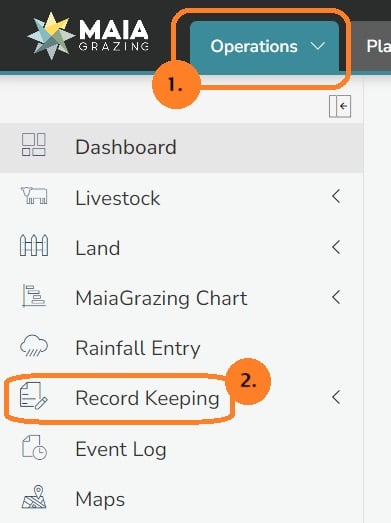
Navigate to the record keeping page
-
Click on 'Operations' (1)
-
Click on 'Record Keeping' (2)
Generate paddock/pasture reports
-
Click on the drop down box under 'Type'
-
Click on 'Paddock/Pasture'
-
Click on the drop down box under 'Category'
-
Choose desired category.
-
Click on the drop down box under 'Report Interval'
-
Choose the required date (for custom dates choose 'Any Dates')
-
Tick 'Show Additional Attributes' to show extra details (Product Name, Batch Number, Application Rate, WHP, ESI, Date Safe for Slaughter, Total Qty)

Download your report
-
Hover your mouse over the 3 dots
 in the top right hand side of the page.
 -
Click on 'Download Report'.
