![MAIA_LAND_RGB.png]](https://support.maiagrazing.com/hs-fs/hubfs/Logos/MAIA_LAND_RGB.png?height=40&name=MAIA_LAND_RGB.png)
This article explains how to check, edit, and refine your livestock setup after you have finished the Setup Wizard
When you first login into your new Maia Grazing LITE account you will be taken through the Setup Wizard to establish the basics of your farm (ranch) in Maia. Many people "Skip" elements of this process and need to return later to complete Setup.
(If you are a user of Maia Grazing PRO please refer to Advanced Livestock Setup.)
To Edit or refine Mobs after the Setup Wizard is closed:
This process is used on Day 0 of your account. If your account already holds grazing data, changes to mob must be entered via the Operations Tab.
This is a 2 step process.
-
Step 1 - Check and adjust stock classes
-
Step 2 - Check and adjust mob setup

Step 1: Check and adjust stock classes
-
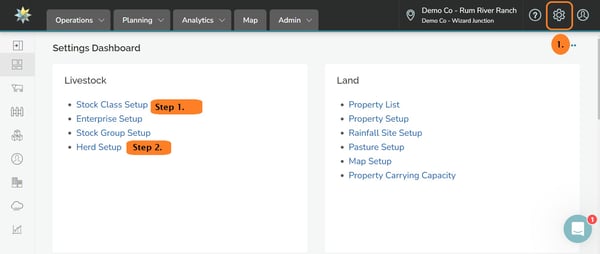
Click the Settings Cog
 in the upper right of the screen.
-
Click on 'stock class setup'
-
Review your Stock Classes to make sure all the basic elements are there.
For Cattle: Bull, Cow, Calf, Heifer, Steer
For Sheep: Ram, Ewe, Lamb, Wether, Ewe Lamb
-
Click on 'Add New Stock Class' (column a) to add more Stock Classes as needed to enable Maia to describe your livestock in a way that matches your current record keeping. Other Common Examples are: 1st Calvers, Replacement Heifers, Mixed Sex Weaners, Wet Cows, Dry Cows.

Keeping it simple works well. The more Stock Classes you add, the more inventory maintenance will be required to ensure that stock are correctly described. This is especially so with replacement females and is achieved by entering Stock Class Transfers.
-
Click on the drop down in column b to assign the species
-
Click on the 'RATING AS A %OF WEIGHT'
-
Enter the percentage of body weight that the average animal of this type is consuming.
The default setting in the "Rating as a % of Bodyweight" column is 3%. This is used to calculate the amount of feed an animal is consuming and will be visible in the Ratings sections of the Mob List and Mob Management Pages (image below). This setting together with the body weight of the animal is driving the feed consumption calculations in Maia. Once Setup is complete, animal weights and ratings are adjusted by editing ratings on the Mobs Edit page. We recommend clients update animal ratings monthly, especially during the growing season. Keeping ratings and weights accurate will be invaluable should you ever wish to use your Maia data to review changes in farm productivity over time.
-
Click on Save to save any changes made.
Step 2: Choose Mob Setup
To add a new Herd/Mob:
-
Click on Add Herd/Mob. (1)
This will open a new Herd/Mob at the top of the Herd/Mob list. MaiaGrazing usually gives this Herd/Mob a default name like Herd 1/Mob 1.
-
Check that correct herd is highlighted in the Herd/Mob list. (a)
-
Click into the data entry box underneath 'The name of this Herd:" (2)
-
Type over the name 'Herd/Mob 1' with your chosen herd/mob name.
-
Click on the coloured dot underneath the herd/mob name to choose the colour that this herd/mob will be in map. (3)
-
Click on the drop down box under 'Which paddock/pasture is this Herd/Mob in?' (4)
-
Click on the name of the paddock to allocate this herd too.
If you don't wish to allocate a paddock/pasture yet leave this blank. Once this mob/herd is saved it will appear in your mob list with the text 'Needs Moving to Paddock/Pasture' beside it.

You are now ready to add the stock numbers that exist in this herd/mob
-
Click into the data entry box under under 'Stock Description'. (Column a)
-
Type over 'Stock Item 1.' with the label for these animals.*
-
Click on the drop down box under 'Stock Class'. (Column b)
-
Click on the stock class to be added to this herd/mob.
-
Click on the data entry box under 'Head'. (Column c)
-
Type the number of head from this stock group to be added to this herd/mob.
-
Click on the data entry box under 'Weight'. (Column d)
-
Type in the average weight of these animals.
-
Click on EITHER the data entry box under 'value/kg' OR the data entry box under 'value/head'.(Column e)
-
Type in EITHER the average value per kilo OR the average value per head.**
-
Click on 'Add Stock' if you want to add another stock group to this Herd/Mob.
-
Click on 'Save' when all animals have been entered for this mob/herd.

-
Click "Save & Close" when finished to return to the Settings Dashboard.
Your mobs are now setup in the program. Go to the Operations tab to start your MaiaGrazing journey!